

Handling Vulnerabilities
Guide to reviewing, fixing, and managing vulnerabilities from discovery to remediation
This guide covers how to work with vulnerabilities in your dashboard—from reviewing findings to verifying fixes. For details on how the AI validation agents work, see Validation Agents.
Vulnerability Statuses
| Status | Description |
|---|---|
| Open | Newly discovered, waiting for your attention |
| In Remediation | You're actively working on a fix |
| Remediated | Fix deployed, awaiting automated verification |
| Fixed | Verified by the Remediation Verification Agent |
| Accepted Risk | Acknowledged and documented as acceptable |
| False Positive | Not a real vulnerability |
Reviewing Vulnerabilities
Finding Vulnerabilities
Navigate to Dashboard > Vulnerabilities to see all findings across your applications.
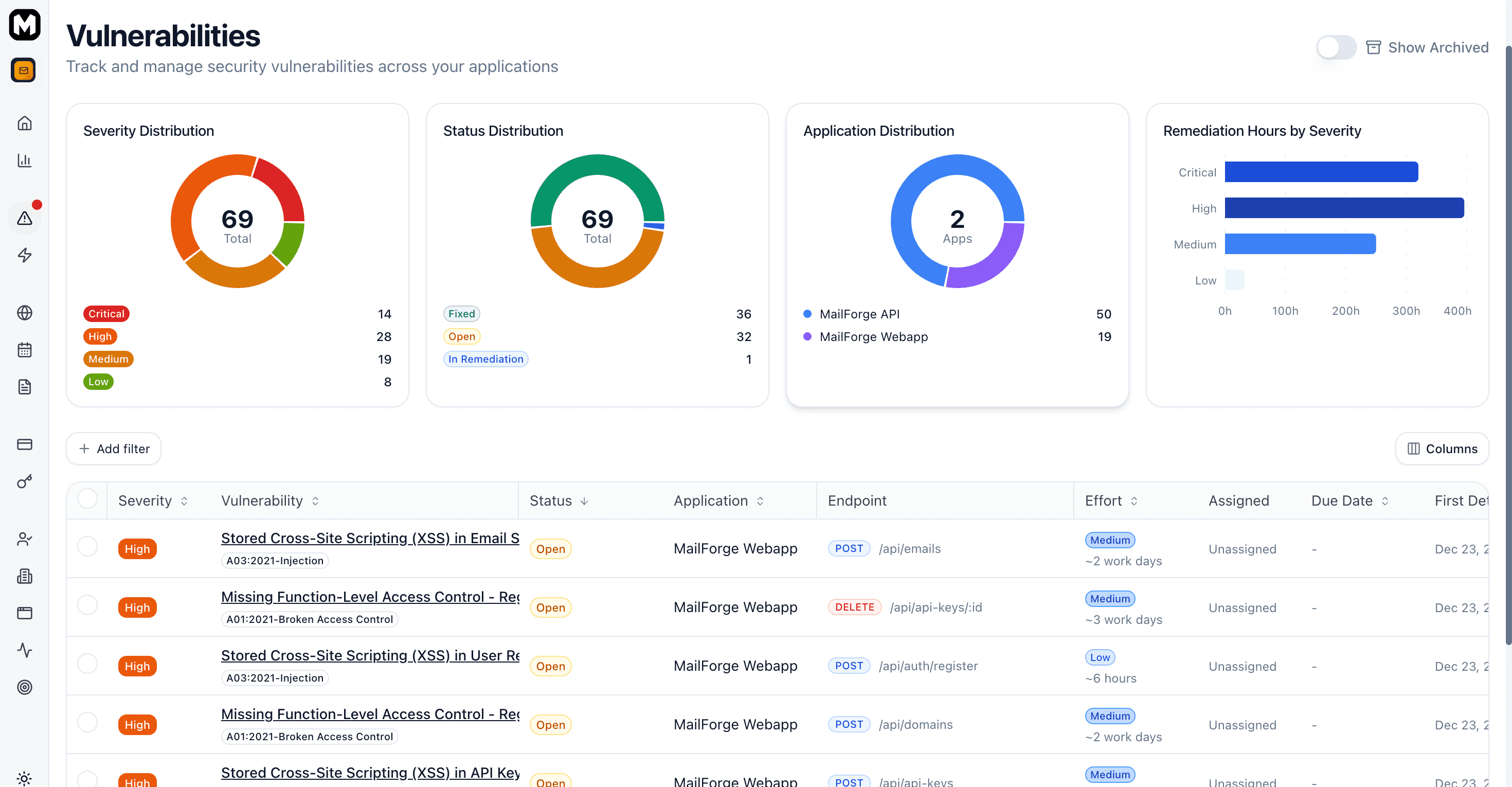
Use filters to narrow results by:
- Severity — Critical, High, Medium, Low
- Status — Open, In Remediation, Fixed, etc.
- Application — Filter by specific app
- OWASP Category — A01, A02, etc.
Vulnerability Details
Click any vulnerability to open its detail page.
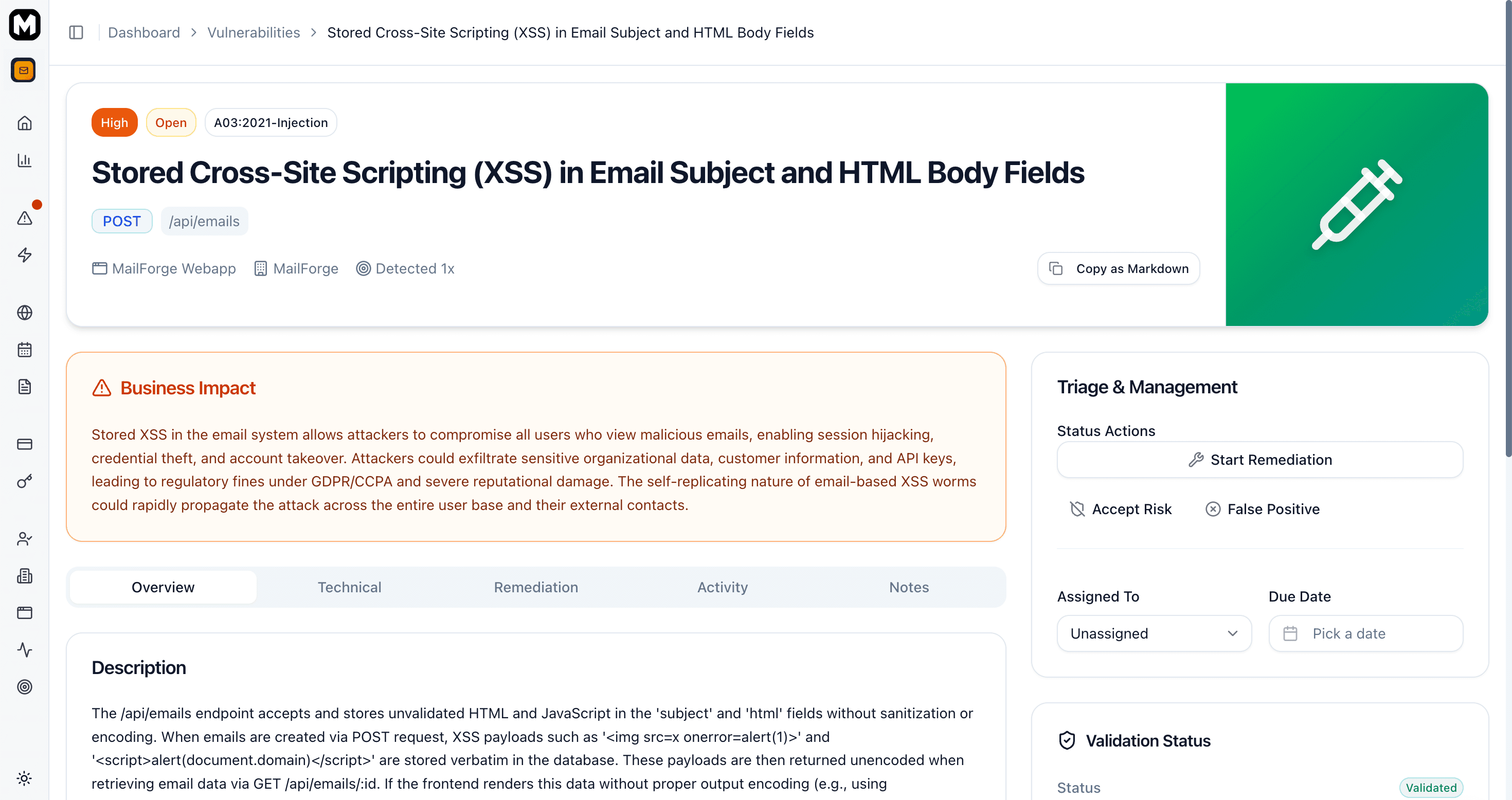
The detail page has five tabs:
| Tab | What It Shows |
|---|---|
| Evidence | Description, proof-of-concept, and attack scenarios |
| Technical | Endpoint, parameter, payloads, CWE/OWASP classification |
| Remediation | Step-by-step fix instructions |
| Activity | Timeline of status changes and verifications |
| Notes | Your team's notes (supports markdown) |
Managing Vulnerabilities
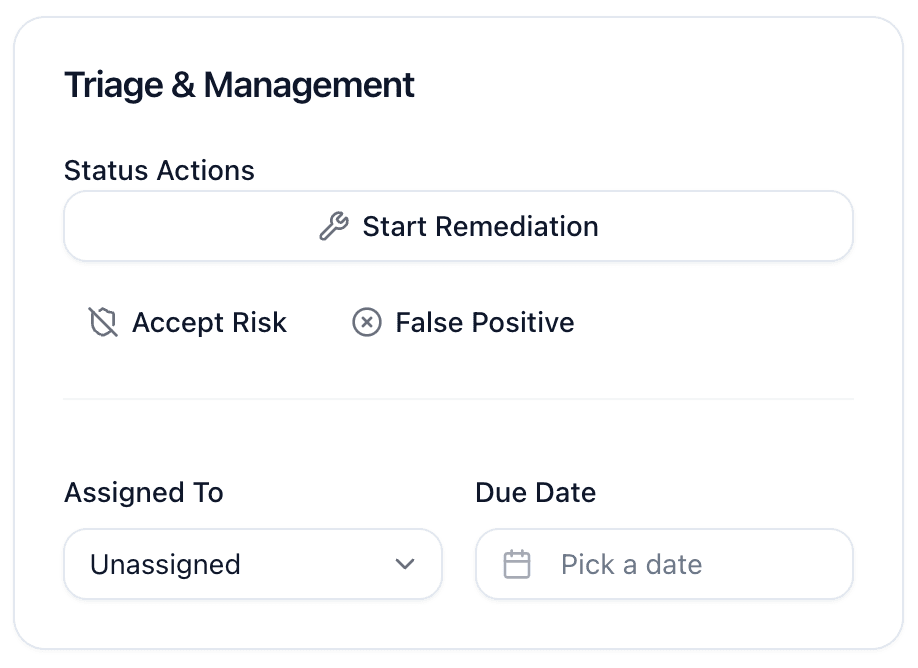
The sidebar provides controls to organize and track remediation work:
- Assign — Assign the vulnerability to a team member. They'll be notified and it appears in their assigned list.
- Due Date — Set a remediation deadline. Overdue vulnerabilities are highlighted in the dashboard.
- Notes — Add comments to track progress, document decisions, or communicate with your team (supports markdown).
Use assignments and due dates to distribute work across your team and track SLA compliance.
Fixing a Vulnerability
Review the Evidence
Read the description and proof-of-concept in the Evidence tab. Understand what the vulnerability is and how it can be exploited.
Start Remediation
Click Start Remediation in the sidebar to update the status and signal that you're working on it. You can also assign an owner and a due date.
Implement the Fix
Follow the guidance in the Remediation tab. Test your fix locally to confirm the exploit no longer works.
Mark as Remediated
After deploying your fix, click Mark Remediated. This automatically triggers the Remediation Verification Agent.
Wait for Verification
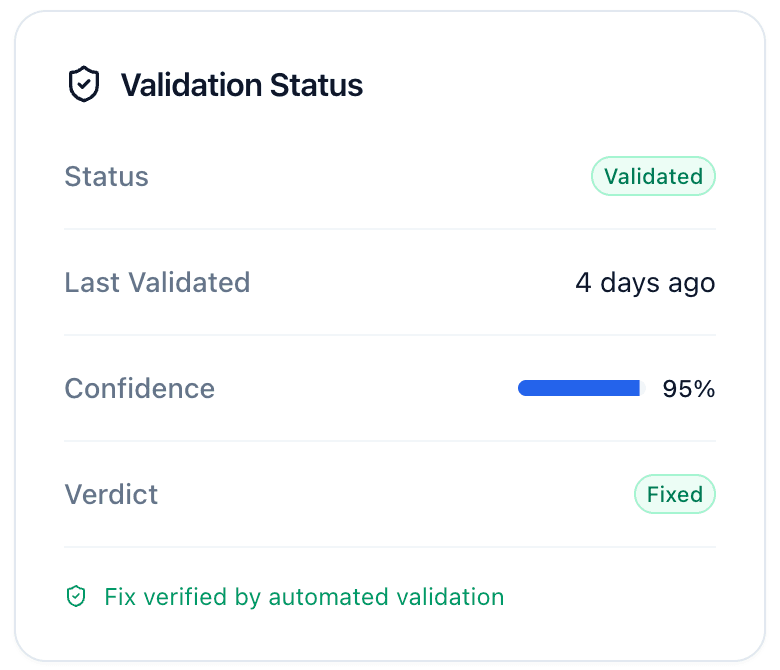
The agent tests your fix within minutes. You'll see the verification status update in the sidebar.
You will also be able to check the status updates in the Activity tab.
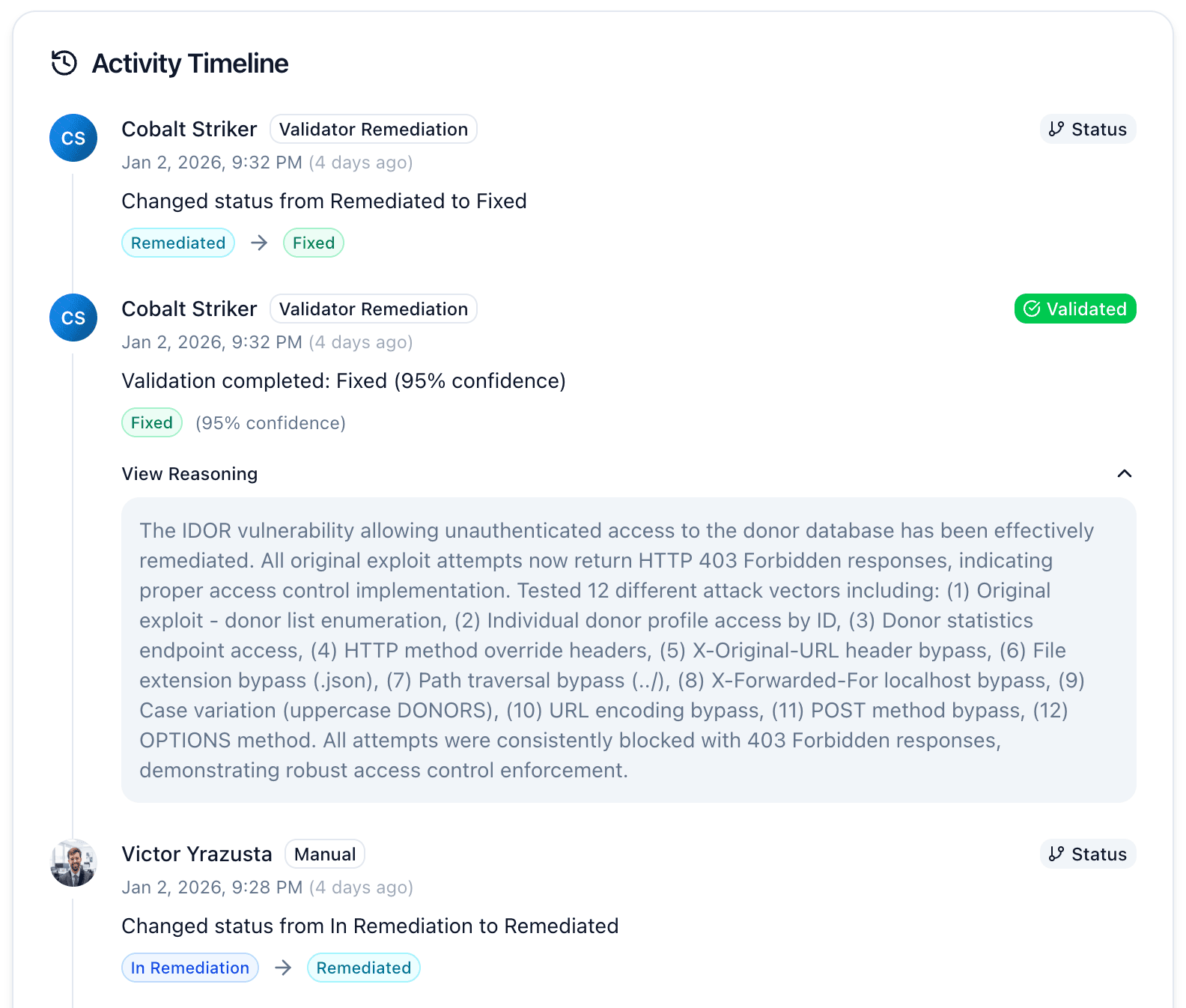
What if verification fails? The vulnerability returns to "In Remediation" with notes explaining what's still exploitable. Review the feedback, update your fix, and mark as remediated again.
Other Actions
Accept Risk
When a vulnerability can't be fixed immediately (business constraints, third-party dependency, etc.):
- Click Accept Risk in the sidebar
- Document your reasoning (required)
- The finding is tracked but won't affect your risk score
Mark as False Positive
If the finding isn't a real vulnerability:
- Click False Positive in the sidebar
- Explain why it's not exploitable
- The finding is archived
Reopen a Fixed Vulnerability
If a regression occurs or you need to re-evaluate:
- Open the vulnerability detail
- Click Reopen
- Confirm the action (reopening a verified fix requires confirmation)
Bulk Actions
Select multiple vulnerabilities using checkboxes to perform bulk operations.
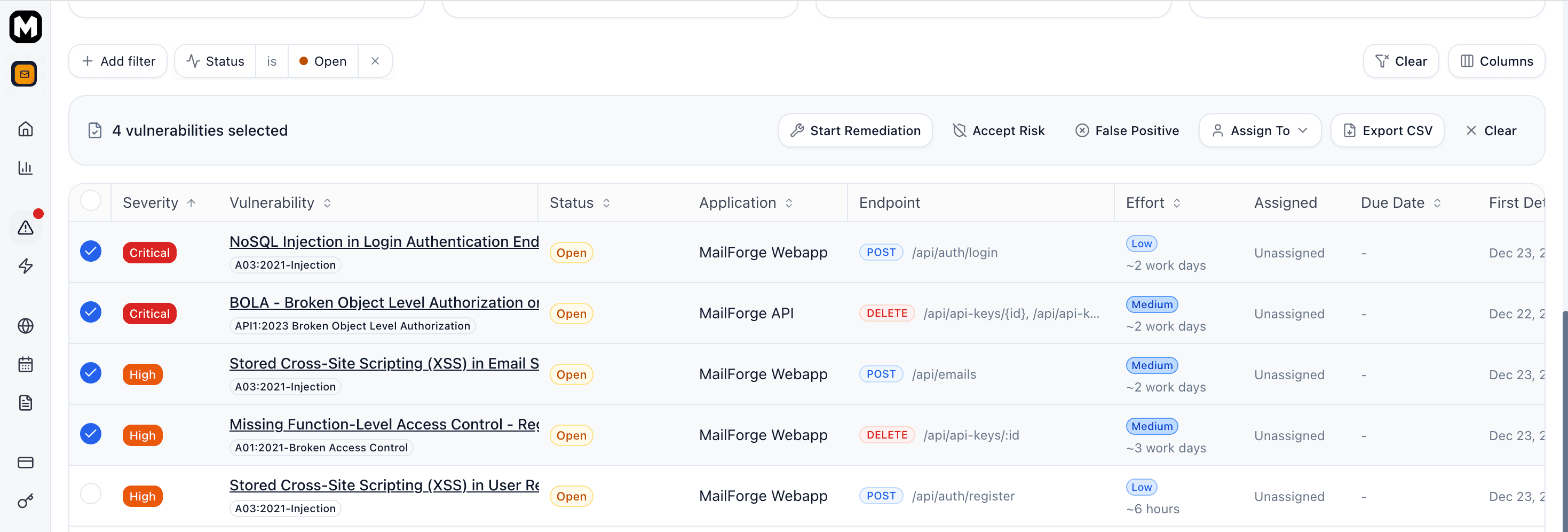
Available bulk actions:
- Assign — Assign all selected to a team member
- Change Status — Update status for all selected (e.g., start remediation, accept risk)
- Export CSV — Download all the vulnerability details in a CSV format
Verification Status
The sidebar shows the current verification status:
| Status | Meaning |
|---|---|
| Unvalidated | Not yet verified |
| Pending | Verification in progress |
| Validated | Fix confirmed working |
| Failed | Verification couldn't complete (retry available) |
After verification completes, you'll see the verdict:
| Verdict | Result |
|---|---|
| Fixed | Vulnerability successfully remediated |
| Still Vulnerable | Original exploit still works |
| Partially Fixed | Some bypasses still possible |
For technical details on how verification works, see Validation Agents.
Best Practices
- Prioritize by severity — Fix Critical and High issues first
- Test locally — Verify the exploit fails before marking remediated
- Document your fix — Use the Notes tab to describe what you changed
- Monitor for regressions — Fixed vulnerabilities are re-tested before each pentest
SOC 2 Compliance
This vulnerability handling workflow creates an audit trail that supports SOC 2 requirements for vulnerability identification, remediation, and verification. See SOC 2 Reports for generating compliance documentation.
Next Steps
- Learn about Validation Agents — How triage and verification work
- Generate SOC 2 Reports — Export compliance documentation
- Run a Pentest — Discover new vulnerabilities
Last updated: October 8, 2026