

Understanding Reports
Learn how to interpret pentest reports, navigate findings, and take action on vulnerabilities
Report Overview
When a pentest finishes, you'll be redirected to the report page. The report contains:
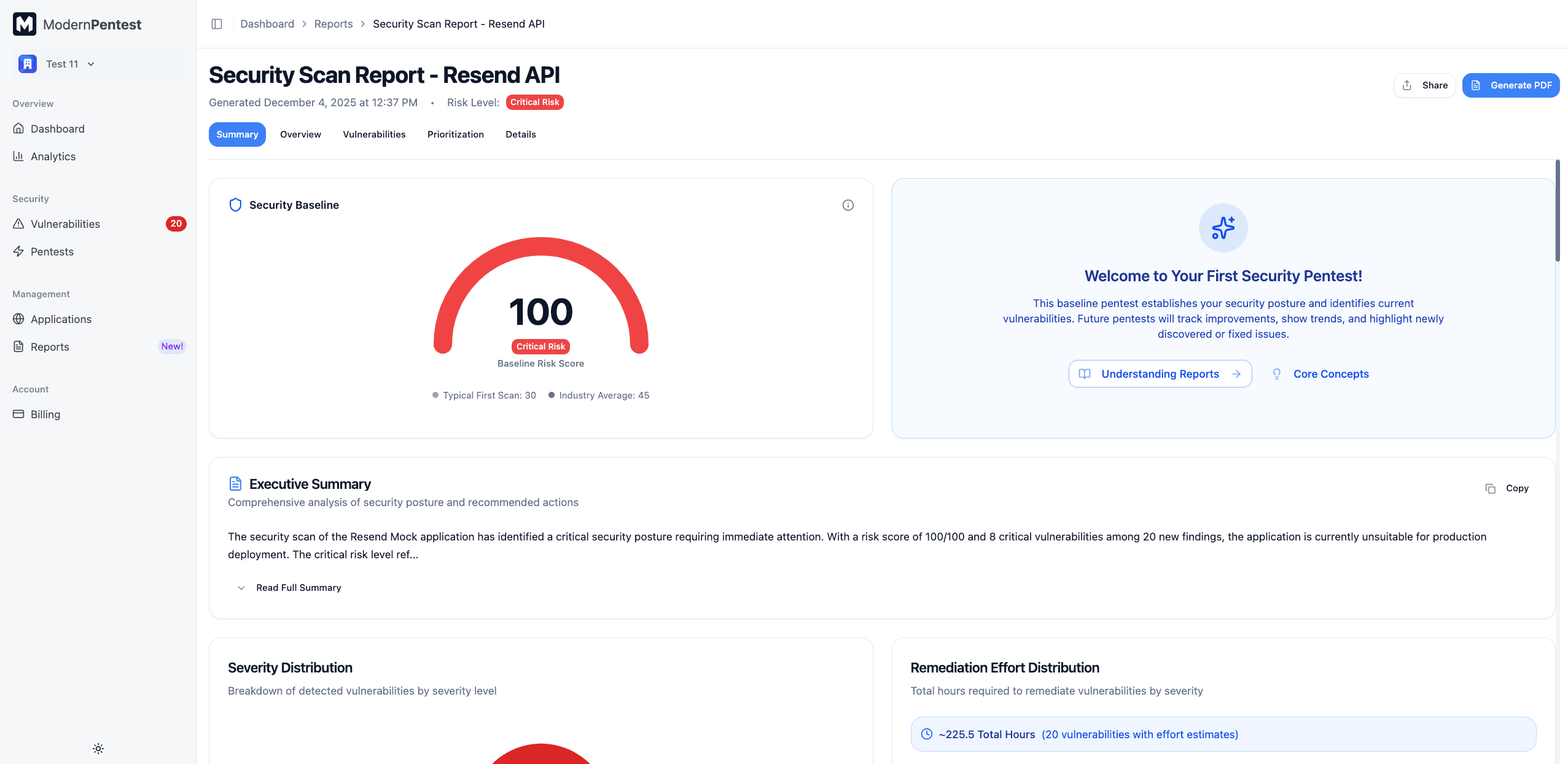
- Header: Report title, generated date, and current risk level badge
- Navigation: Scrollspy tabs to jump between sections
- Action buttons: Share link and Download PDF
- Risk Level Gauge: A 0-100 score representing your overall security risk:
| Score | Risk Level | Description |
|---|---|---|
| 80-100 | High | Critical issues requiring immediate attention |
| 50-79 | Medium | Significant vulnerabilities to address soon |
| 20-49 | Low | Minor issues with limited impact |
| 0-19 | Minimal | Good security posture |
Brief Summary (Executive Summary)
The first section is an AI-generated executive summary (300-500 words) that provides:
- Overall security posture assessment
- Key findings and their business impact
- Priority areas requiring attention
- Comparison to previous pentests (if applicable)
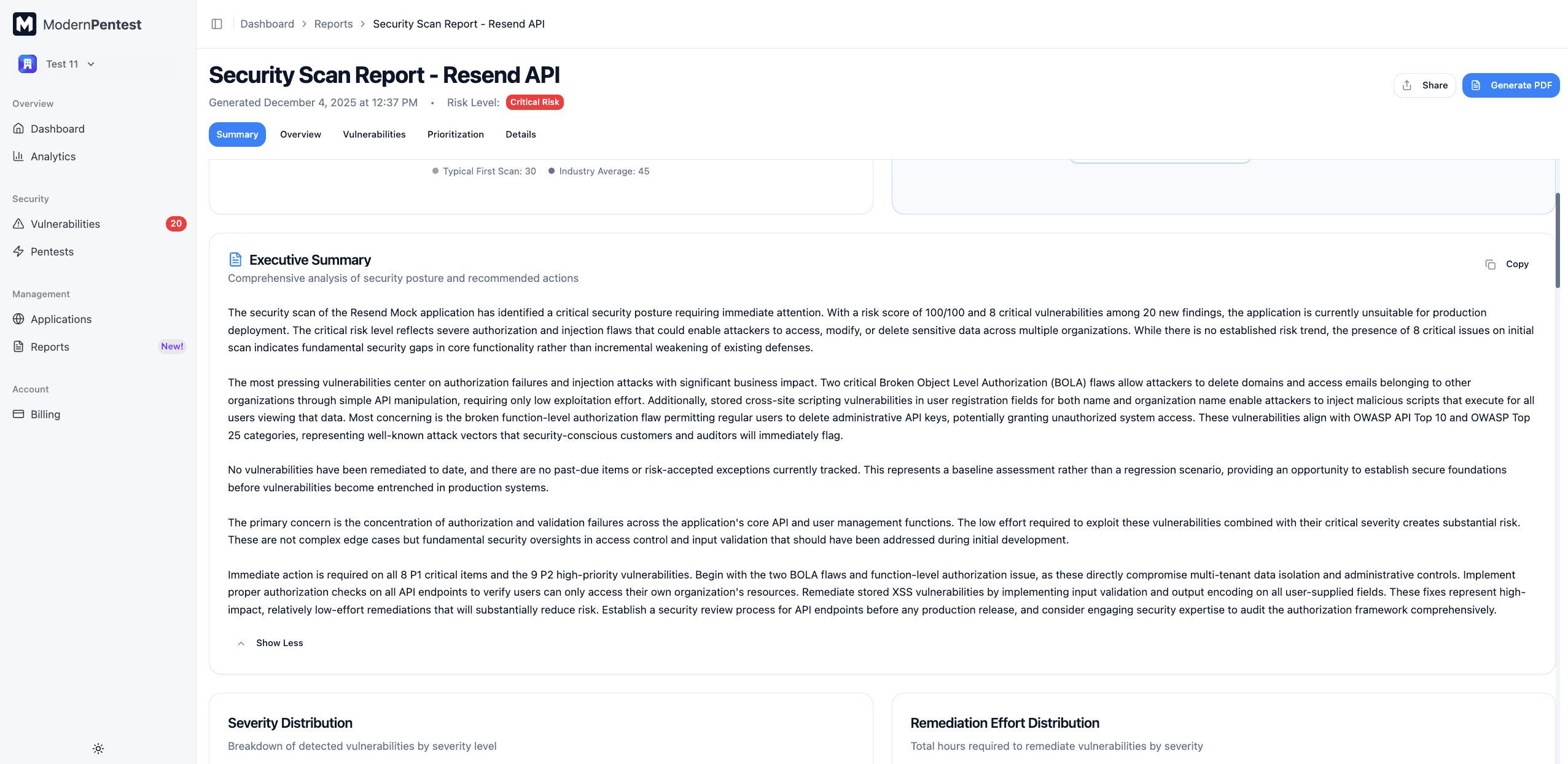
The executive summary provides context that helps non-technical stakeholders understand the security implications.
You can expand/collapse the summary and copy it to your clipboard for sharing with team members.
Visual Summary
The visual summary section displays your security metrics through interactive charts:
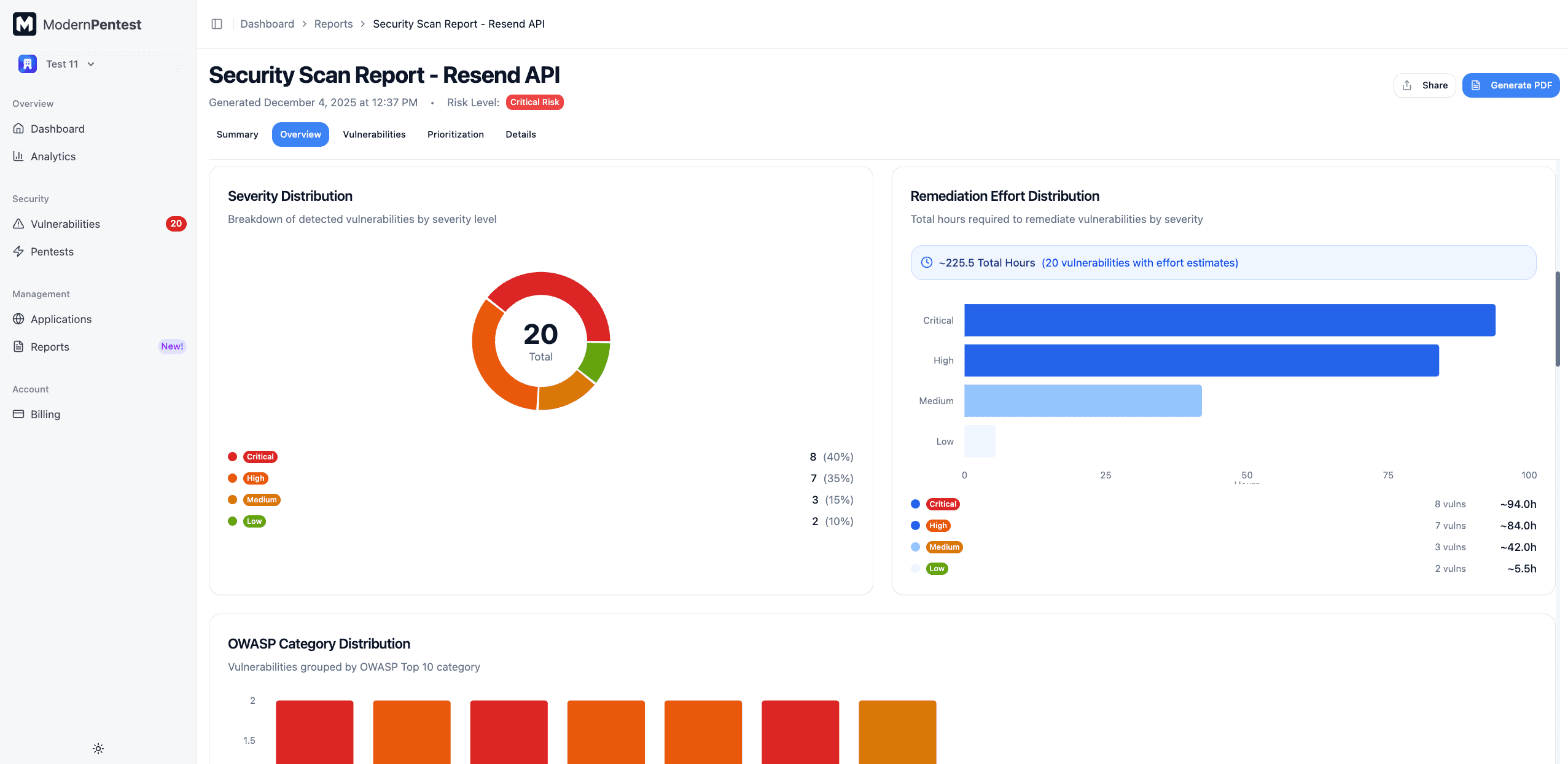
Severity Distribution
A breakdown of vulnerabilities by severity level:
- Critical - Immediate exploitation risk, severe impact
- High - Serious security impact, exploitable
- Medium - Moderate risk, may require specific conditions
- Low - Minor issues, limited impact
- Info - Observations and best practice recommendations
Effort Distribution
Shows the estimated remediation effort for your vulnerabilities, helping you plan resources.
OWASP Coverage
Visualizes which OWASP Top 10 categories were tested and where vulnerabilities were found.
Discovered Vulnerabilities
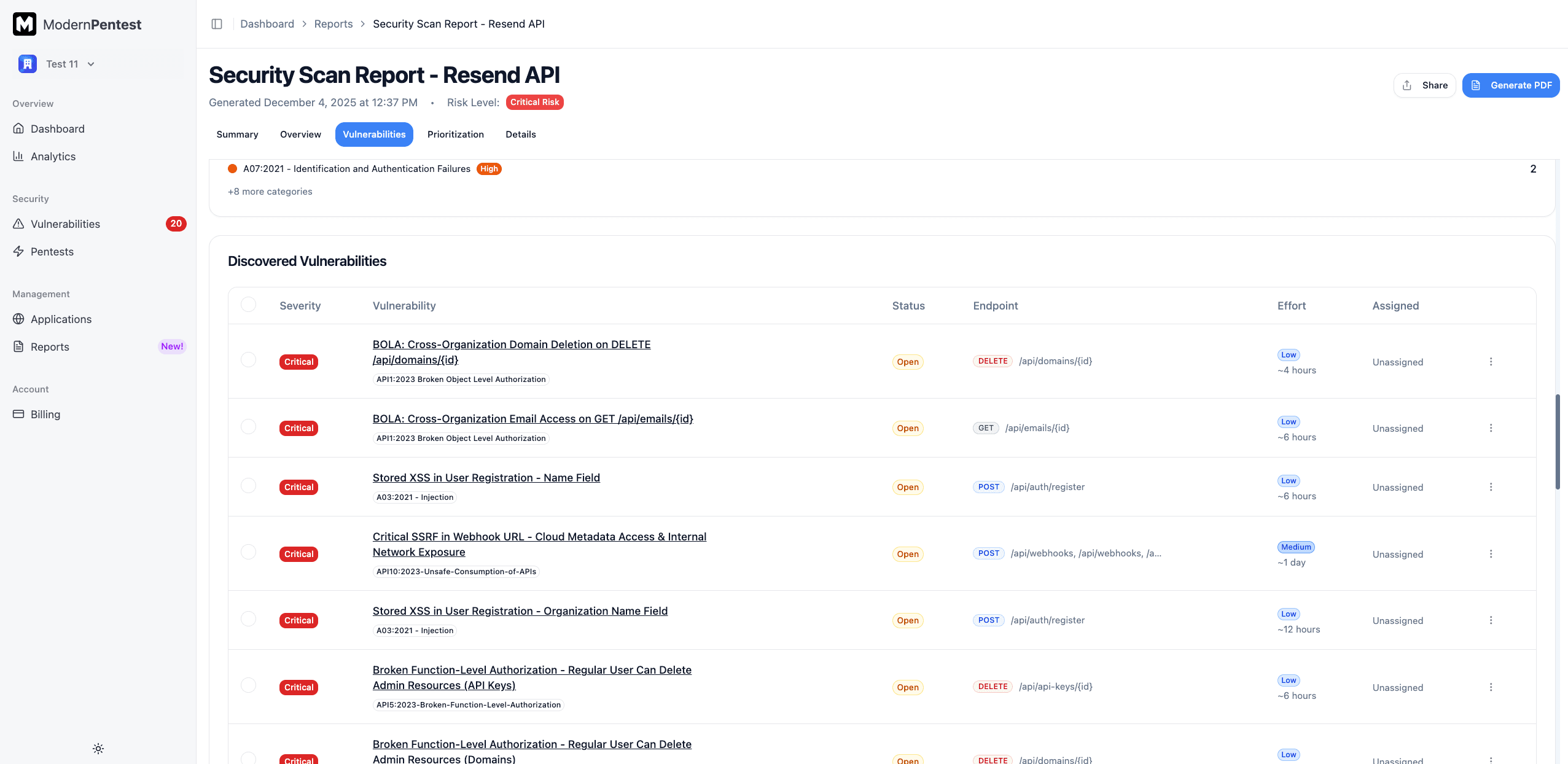
The vulnerabilities section uses a tabbed interface to organize findings by status:
Vulnerability Tabs
| Tab | Description |
|---|---|
| New | Vulnerabilities discovered in this pentest |
| Not Assigned | Open vulnerabilities awaiting team assignment |
| In Remediation | Vulnerabilities currently being fixed |
| Past Due | Overdue items past their remediation deadline |
| Fixed | Successfully remediated vulnerabilities |
| Risk Accepted | Acknowledged risks with documented reasoning |
| False Positive | Findings marked as incorrect detections |
| Reintroduced | Previously fixed issues that have reappeared |
Working with Vulnerabilities
Each vulnerability row shows:
- Severity badge - Color-coded severity level
- Title - Brief description of the issue
- Status - Current remediation status
- Effort - Estimated fix complexity
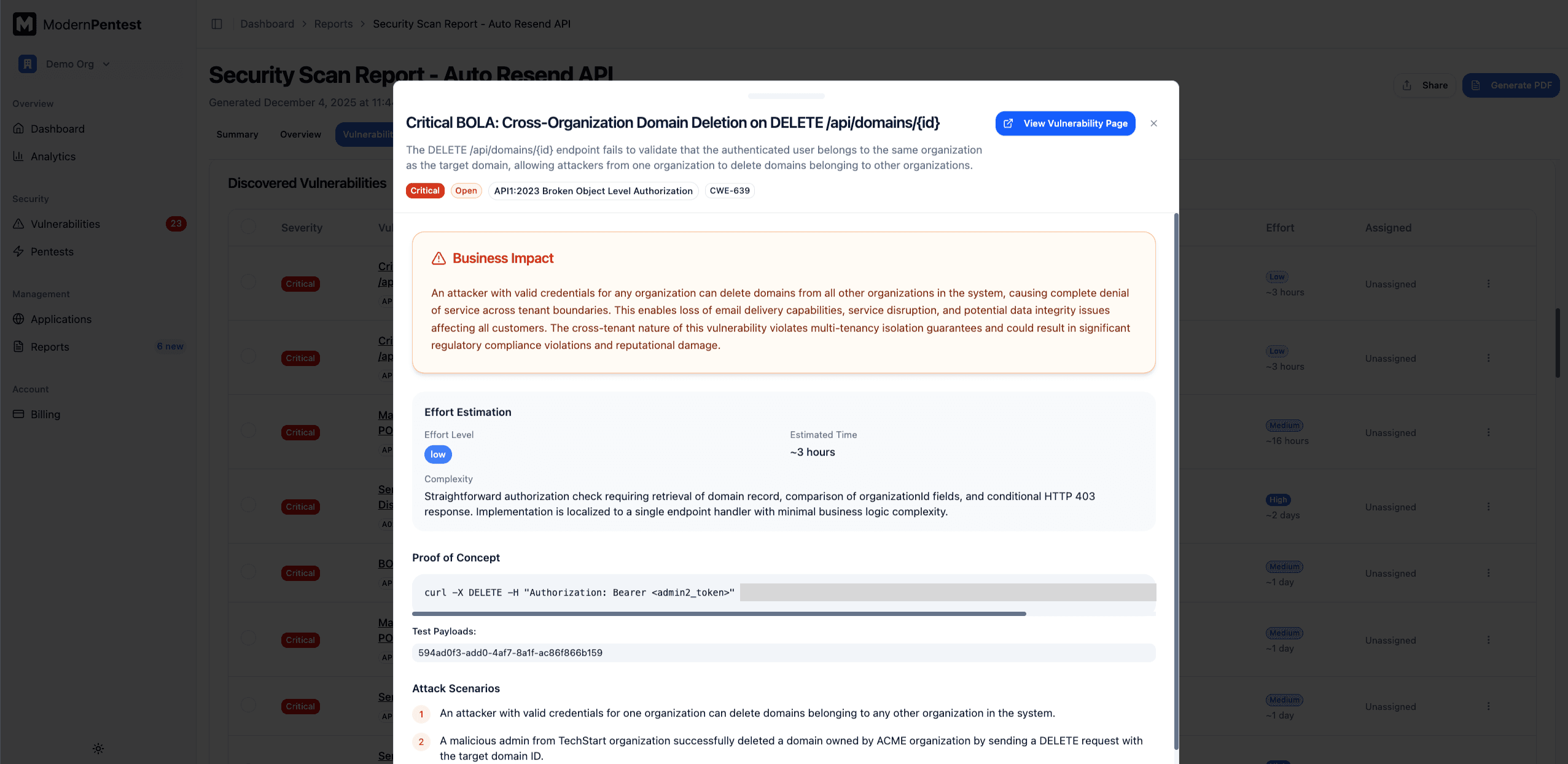
Click any vulnerability to open the detail drawer with full information including:
- Technical details and evidence
- Affected endpoint/parameter
- CVSS score and CWE reference
- Step-by-step remediation guidance
- Code examples
Bulk Actions
Select multiple vulnerabilities using checkboxes to:
- Assign to team members
- Change status in bulk
- Clear selection
Prioritization
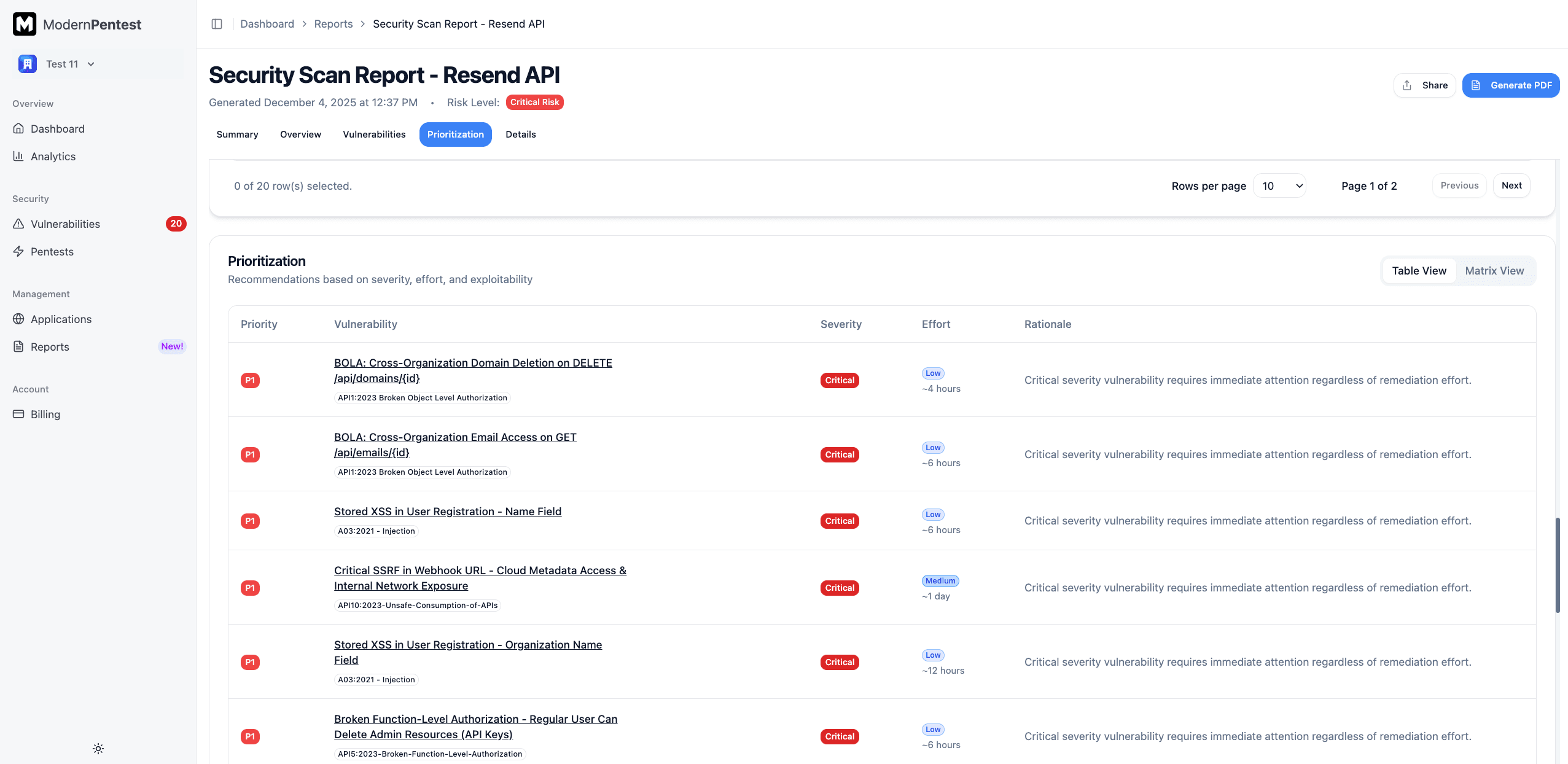
ModernPentest prioritizes vulnerabilities based on real-world exploitability, not just severity scores.
View Options
- Table View: Sortable list grouped by priority level
- Matrix View: 2x2 visual matrix for quick assessment
Priority Levels
| Priority | Criteria | Recommended Action |
|---|---|---|
| P1 (Critical) | Critical severity OR High severity with known exploit | Fix within hours |
| P2 (High) | High severity OR Medium severity with low effort | Fix within 24-48 hours |
| P3 (Medium) | Medium severity OR Low severity with quick fixes | Fix within 1-2 weeks |
| P4 (Low) | Low and Info severity issues | Fix when convenient |
Prioritization Factors
The system considers:
- Severity - CVSS-based severity rating
- Remediation Effort - How complex is the fix (low/medium/high)
- Exploitability - Is there a known exploit or POC available
Smart prioritization helps you focus on vulnerabilities that matter most, reducing noise from low-impact findings.
Vulnerability Trends
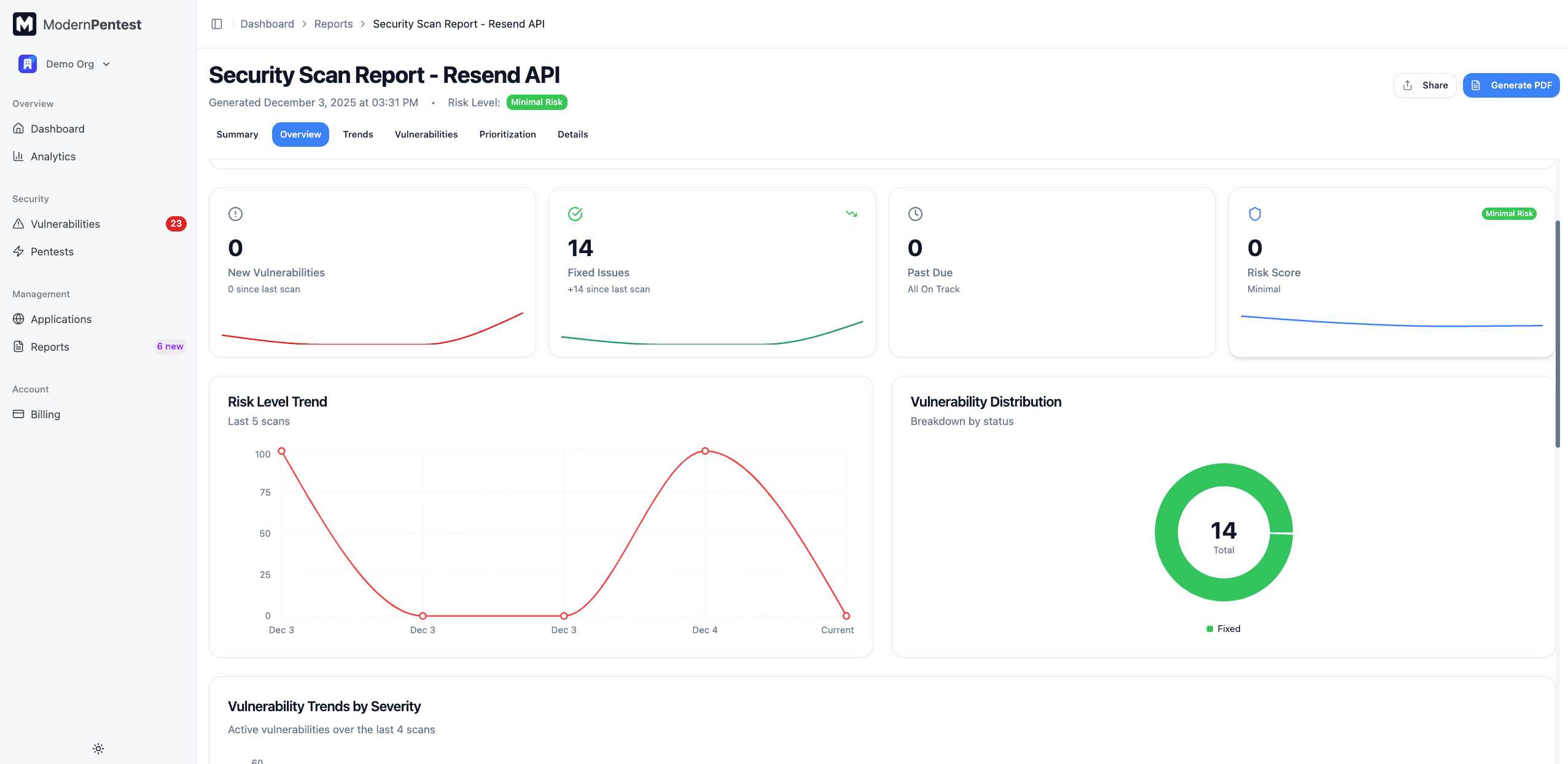
For applications with multiple pentests, the report includes historical trend analysis:
Risk Trend Chart
Shows how your risk score has changed over the last 10 pentests, with indicators for:
- Improving - Risk score decreasing
- Stable - Risk score unchanged
- Degrading - Risk score increasing
Vulnerability Trend Chart
Displays vulnerability counts by severity over time, helping you track:
- Whether you're fixing more than you're introducing
- Which severity categories are improving
- Long-term security posture trends
Trend charts appear after your second pentest on an application. Your first pentest establishes the baseline.
Taking Action
Fix Vulnerabilities
- Click the vulnerability to view remediation guidance
- Implement the recommended fix
- Mark as Fixed in the vulnerability drawer
- Run a new pentest to verify the fix
Assign to Team Members
- Select vulnerabilities using checkboxes
- Click Assign
- Choose a team member
- They'll receive a notification
Accept Risk
If a vulnerability cannot be fixed immediately:
- Click the vulnerability
- Select Accept Risk
- Document your reasoning (required)
- Set a review date
- The finding will be tracked but won't affect your risk score
Mark as False Positive
If a finding is incorrect:
- Click the vulnerability
- Select False Positive
- Explain why it's not a real vulnerability
- Our team reviews submissions to improve detection accuracy
Export and Share
- Download PDF - Generate a formatted PDF report for stakeholders
- Share Link - Copy a link to share the report with team members
First Pentest vs. Subsequent Pentests
Your first pentest shows a simplified view:
- Single vulnerability list (no tabs)
- No trend data (baseline is being established)
- Welcome guidance for new users
Subsequent pentests show:
- Full tabbed interface with status tracking
- Historical trend charts
- Comparison to previous pentest
- Reintroduced vulnerabilities (if any)
Next Steps
- Set up integrations to streamline remediation workflows
- Generate SOC 2 reports for compliance documentation
- Learn about continuous monitoring for ongoing security
Last updated: September 7, 2026