

Managing Schedules
View upcoming pentests, reschedule scans, and track your testing history
ModernPentest automatically schedules pentests based on your configured frequency (daily, weekly, or monthly). The Schedule page provides a central hub to view, manage, and track all your scheduled pentests across applications.
The Schedule Page
Access the Schedule page from the sidebar navigation under Schedule. The page displays:
- Statistics cards - Quick metrics about your scanning schedule
- Calendar view - Visual representation of upcoming and past pentests
- Timeline - Chronological list of all pentests with quick actions
Understanding the Calendar
The calendar shows your pentest schedule at a glance:
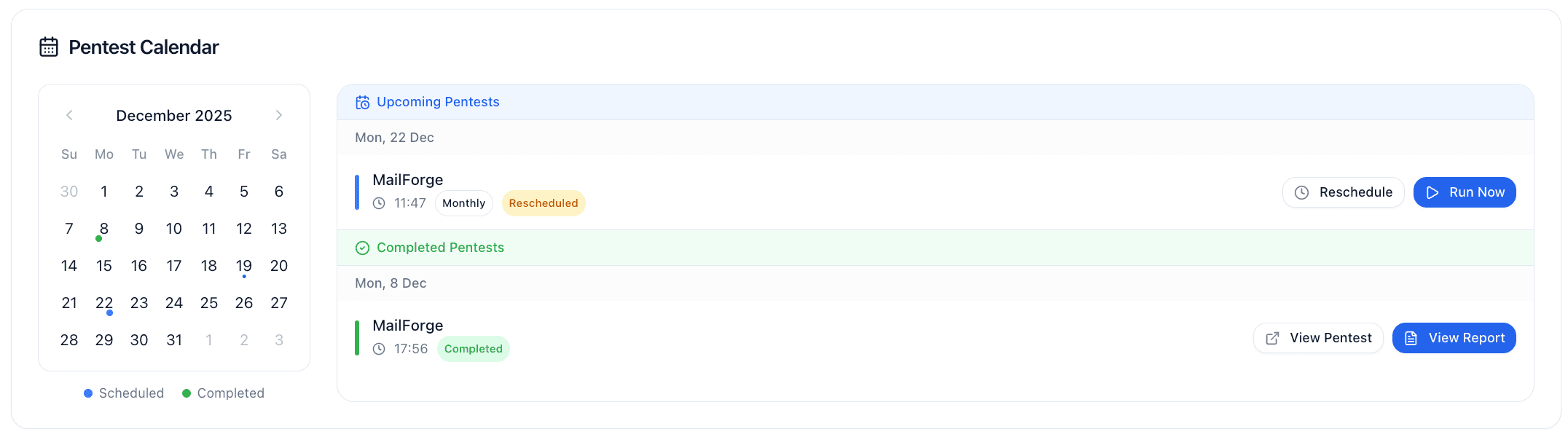
| Indicator | Meaning |
|---|---|
| Blue dot | Scheduled upcoming pentest |
| Green dot | Completed pentest |
Tip: Click any date on the calendar to scroll the timeline to that date's pentests.
Schedule Statistics
The statistics cards provide key metrics:
| Stat | Description |
|---|---|
| Next Pentest | Countdown to your next scheduled scan |
| Automated Apps | Count of apps with automated scheduling by frequency |
| Scheduled This Month | Upcoming pentests in the current month |
| Completed This Month | Finished pentests in the current month |
Rescheduling a Pentest
Need to delay an upcoming pentest? You can reschedule it with preset options or pick a specific date.
Find the Pentest
Locate the upcoming pentest in the timeline. Each entry shows the application name, scheduled time, and frequency.
Open Reschedule Dialog
Click the Reschedule button on the pentest you want to modify.
Choose a Delay Option
Select from quick preset options:
| Option | Description |
|---|---|
| Delay 1 day | Postpone by 24 hours |
| Delay 3 days | Postpone by 3 days |
| Delay 1 week | Postpone by 7 days |
| Delay 2 weeks | Postpone by 14 days |
| Skip this cycle | Move to the next scheduled interval |
Or click Show calendar to pick a specific date.
Review and Confirm
The dialog shows a preview of the date change (e.g., "Dec 24 → Dec 31"). Click Reschedule to confirm.
To undo a reschedule and return to your regular schedule, click Reset to regular schedule in the reschedule dialog.
Rescheduled pentests display a "Rescheduled" badge in the timeline.
Running a Pentest Immediately
Don't want to wait for the scheduled time? Click Run Now to start a pentest immediately.
This is useful when:
- You've deployed a security fix and want to verify it
- You need urgent security testing before a release
- You want to run an ad-hoc scan outside the regular schedule
After clicking Run Now, you'll be redirected to the pentest monitoring page.
Viewing Past Pentests
The timeline's "Completed Pentests" section shows your scan history:
- Status indicator - Green for completed, red for failed
- Vulnerability count - Number of findings with severity color coding
- Quick actions:
- View Pentest - Open the pentest details page
- View Report - Access the generated report (when available)
Schedule Frequencies
Your scan frequency is configured when adding an application. Here's how each frequency works:
| Frequency | When Scans Run |
|---|---|
| Daily | Every 24 hours from last completed scan |
| Weekly | Every 7 days from last completed scan |
| Monthly | Every 30 days from last completed scan |
| Manual | On-demand only - no automatic scheduling |
To change an application's scan frequency, go to the application settings page and update the Scan Frequency option.
Next Steps
- Running Pentests - Learn how pentests work and monitor progress
- Understanding Reports - Interpret findings and take action
- Adding Applications - Configure applications and set scan frequency
Last updated: October 22, 2026